
Quick look: a familiar game from a different angle
An ivory knight, a copper king and a quiet green board: 3D CHESS brings traditional chess into a three-dimensional setting. Play against the computer at three difficulty levels or take turns with someone on the same device. Select a piece, check its legal moves and choose a destination. The game works on desktop and mobile, offers optional sound effects and saves your current game in the browser you use.
Play 3D CHESS free online on alexo.org, directly in your browser. No account, sign-up or app download is needed. The same game modes are available on phones, tablets and computers.
Jump to: The game · Controls · Computer opponent · Local play · Views and sound · Useful tools · Chess tips · FAQ
The game: think beyond the next capture
Moving your first pawn opens more than a single square. A bishop may gain a diagonal, your queen may find a route into play, and a central square can become the focus of several pieces. In this 3D chess game, familiar decisions unfold on a board with depth, soft shadows and sculptural pieces.
The rules are standard chess. You win by checkmating the opposing king: the king is under attack and no legal move can remove that threat. Capturing material helps, but an extra pawn does not automatically make your position safe. A careless move may leave your queen exposed or your king without protection.
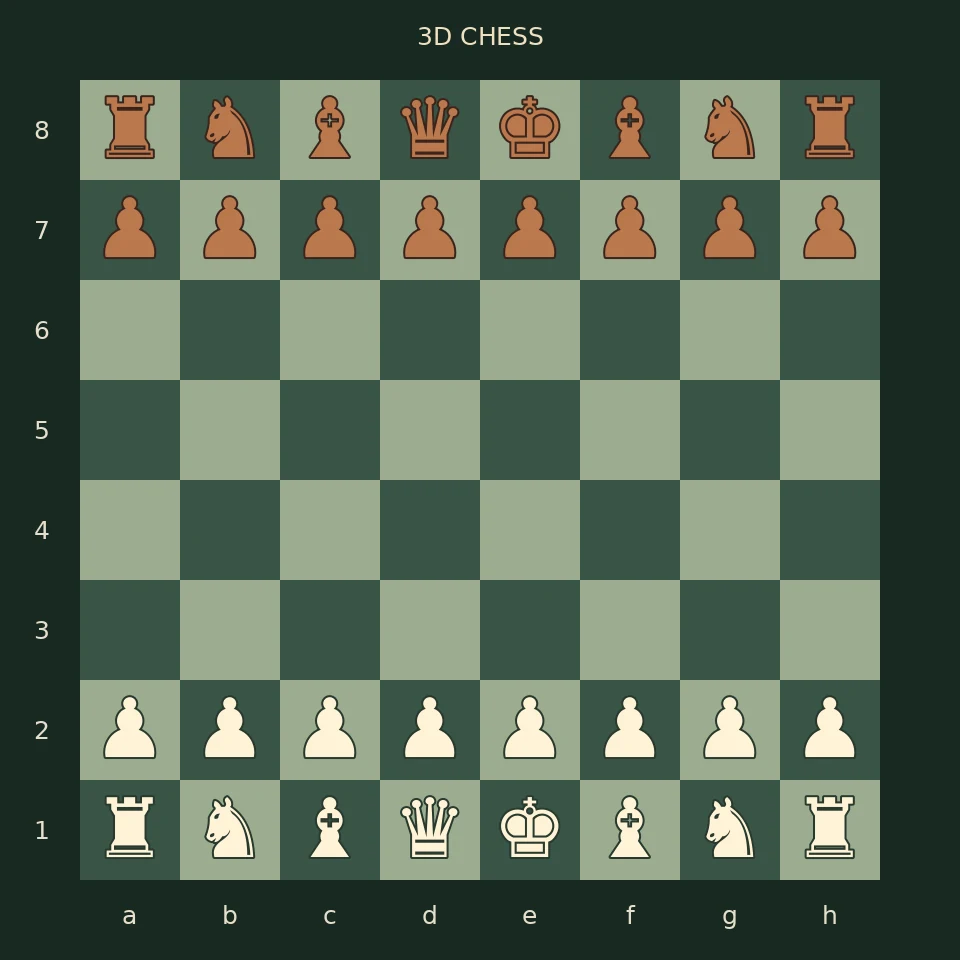
Ivory and copper identify the armies, while alternating green squares keep the board visually restrained. Adjust the camera whenever you need a clearer picture; changing perspective does not change the position.
Controls: select a piece, then its destination
Playing a move takes two clicks or taps. Choose one of your pieces and then select its destination square. There is no need to drag a piece across the board while holding it down.
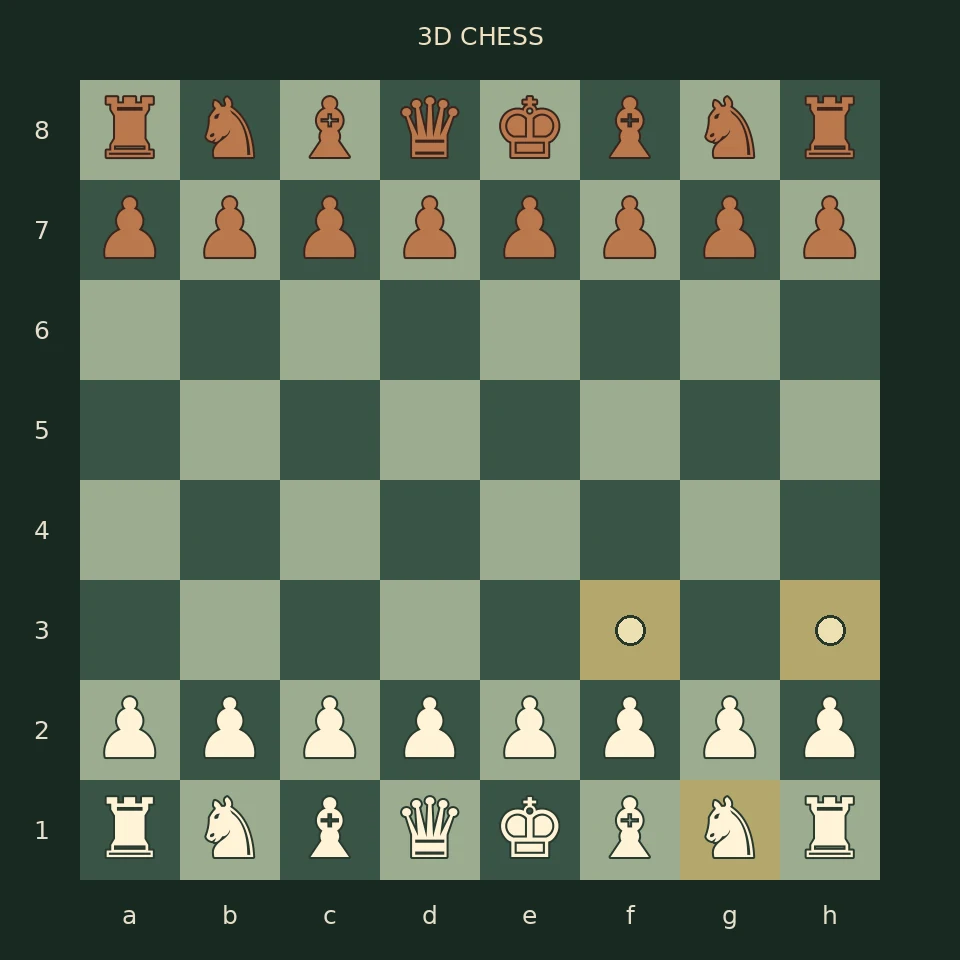
Small dots show legal destinations. Rings indicate squares where the selected piece can capture an opponent. These markers help when you are learning how the pieces move, but they also reflect restrictions imposed by the position. A move that leaves your king in check is not allowed.
At the start, selecting White’s knight on g1 reveals f3 and h3 as possible destinations. The knight can jump over the pawn line. A bishop cannot: it needs an unobstructed diagonal. The highlighted squares connect each movement pattern with what is actually possible on the board.
Computer opponent: choose how much resistance you want
In “Vs computer” mode, you play White and make the opening move. The computer controls Black. The difficulty selector offers “Relaxed”, “Balanced” and “Challenging” settings.
These change how the opponent calculates its moves. They do not represent published Elo ratings. Start with the relaxed option if you want to get comfortable with the controls, then try another level to test your plans against a different calculation depth.
There is no chess clock counting down your turn. Pause over a position, compare candidate moves and look for an opponent’s threat before committing. While the computer calculates its reply, the status area tells you that it is thinking rather than waiting for another input.
Local play: share a board and alternate turns
Choose “Two players” to play with someone beside you. One person takes White, the other Black. You alternate moves on the same computer, tablet or phone.
This suits a quiet head-to-head game or a position you want to discuss together. “Flip board” moves the camera to the opposite side, making it easier to look from the other player’s perspective. It changes neither the position nor the side to move.
Local play is not online matchmaking. There are currently no remote game rooms or invitation links connecting two devices. Your opponent needs to share the same screen.
Views and sound: get a clearer look at the position
On a computer, hold the right mouse button and drag to rotate the camera. On a touchscreen, move one finger across the board. Use the mouse wheel or a two-finger gesture to adjust the zoom.
“View” switches between the angled scene and an overhead view. Looking from above can help when pieces overlap in perspective or when you want to trace an open file. Camera movements never move a chess piece.
Sound starts switched off. Tap the musical-note icon to enable short effects for events such as ordinary moves, captures and check. You can turn them off again without interrupting the game or losing the current position.
Hints, undo and history: give a position another look
“Hint” suggests a move and highlights its starting and destination squares. It offers an idea to investigate rather than a written explanation. Ask what changes after the suggestion: does it defend a piece, increase activity or create a threat? It is not a promise of a winning continuation.
“Undo” lets you reconsider a decision. Against the computer, using it after the reply takes back the last pair of moves. In local play, it takes back one move by one side, also called a half-move.
The move list records how the game developed. Check which exchange opened a file or when a defender left an important square. Piece letters in the displayed notation follow the selected language.
Chess tips: check the threat before following your plan
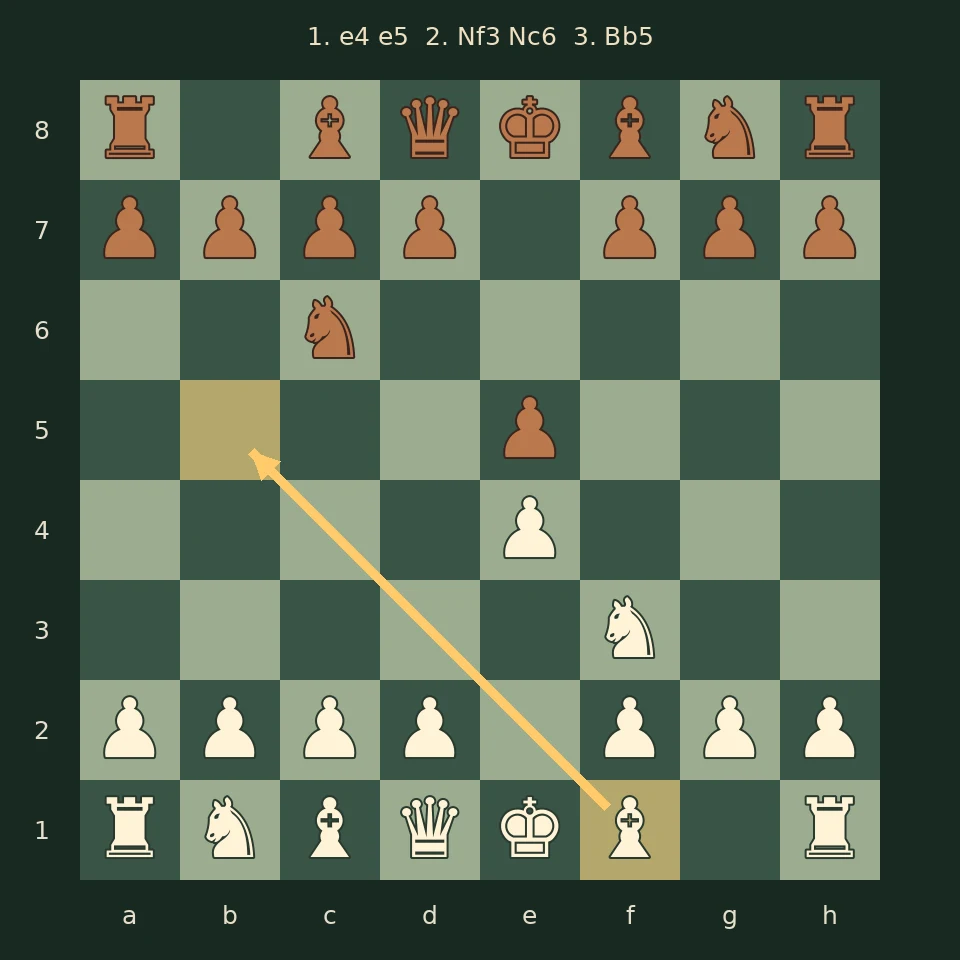
In the opening, aim to develop your pieces and influence the centre. A knight on an active central square often reaches more useful destinations than one left at the edge. Your bishops and rooks also need routes into the game.
Before moving, look at what your opponent can do. Is one of your pieces undefended? Does a capture uncover an attack behind it? Could a checking move force your king onto an awkward square? A short safety check can be more valuable than a long combination built on a missed threat.
If your king is in check, your next move must remove it. Depending on the position, you may move the king, capture the attacker or block the attack. Only legal responses are accepted.
FAQ: practical questions about 3D CHESS
Do I need to install an app?
No separate game app is required. The game runs in a browser with WebGL support. If the board does not appear, check whether that graphics feature is available and enabled. You use a mouse or touchscreen to control the pieces.
Can I play on a phone?
Yes. The interface supports mobile and desktop play. Tap pieces and destination squares to move; gestures change the camera. The same game modes are available on larger screens, so switching devices does not mean learning a different set of controls.
How do I change the language?
The portal page sets the game language. Use the selector in the game to open the corresponding language page. Your saved game history remains available in the same browser.
Is the game available without signing in?
Play 3D CHESS free online on alexo.org, directly in your browser. No account, sign-up or app download is needed. The same game modes are available on phones, tablets and computers.
Are castling, en passant and promotion included?
Yes, when their legal conditions are met. When a pawn reaches the final rank, choose a queen, rook, bishop or knight. Promotion does not have to produce a queen; select the piece that suits the position you are trying to reach.
How does the game recognise a draw?
It detects stalemate, insufficient mating material, threefold repetition and the fifty-move rule. Stalemate is a draw, not checkmate: the player has no legal move, but their king is not in check. The status area identifies the relevant result.
Will my unfinished game be saved?
The game saves locally in your current browser when its storage settings allow it. There is no automatic transfer between devices. Clearing browser data can remove the saved game. Starting a new game replaces the current one after confirmation if moves exist.
Is this suitable for beginners?
Legal-move markers, hints and undo make experimentation easier. There is no complete chess course included. Knowing the basic piece movements helps you use the tools thoughtfully. The relaxed computer setting gives you a starting point while you get familiar with the interface.
Try a different challenge
PONG tests your paddle timing. STARTRAIL calls for quick reactions, while PRISM BLOCKS lets you find the right places for your blocks.